This section covers the Club-level tools used to organise people, settings, tasks, Assessments and Development Programs.
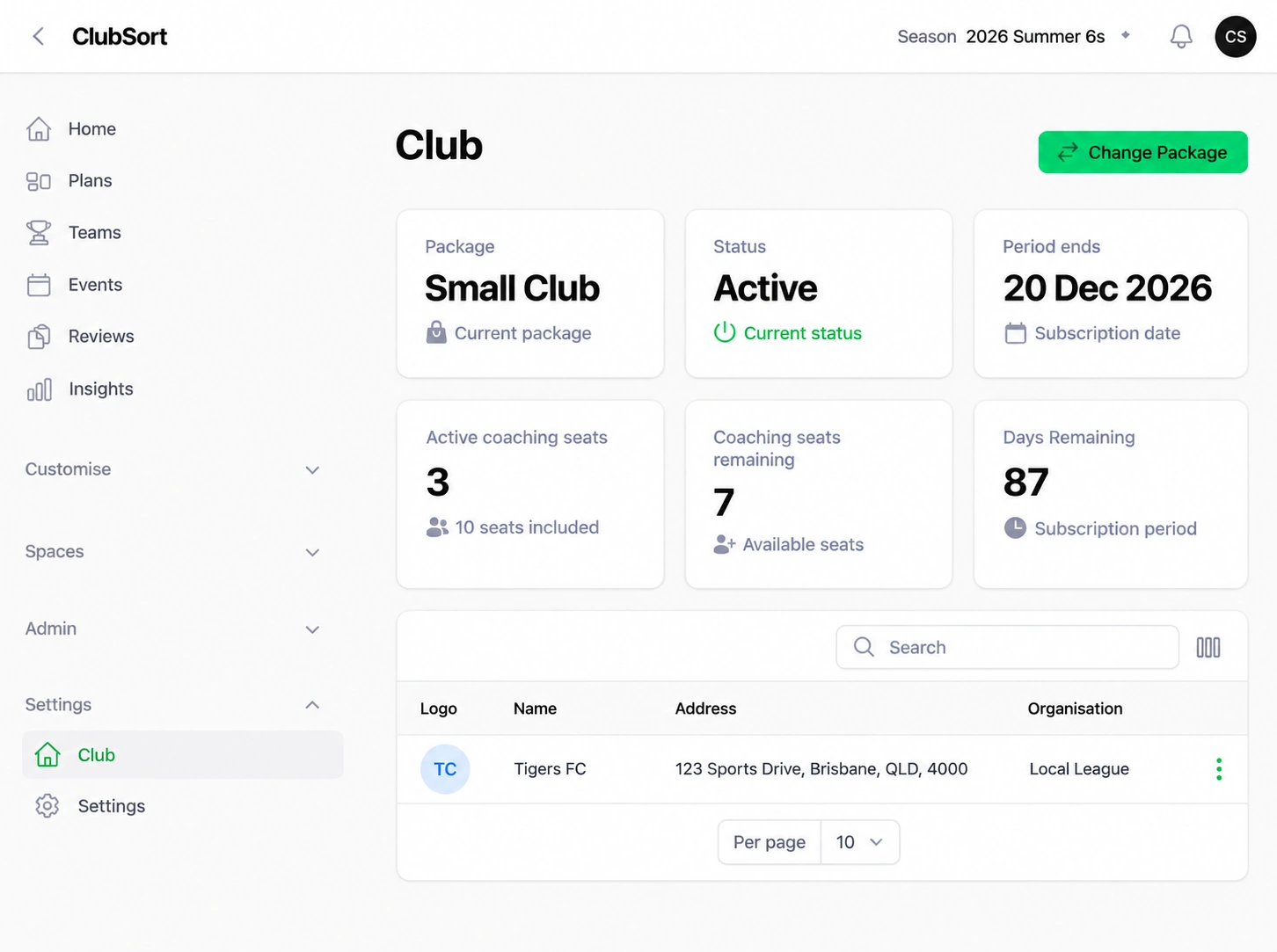
Manage Club details
Screenshot
Club details form
Show: The Club details form with name, contact details and logo controls.
Purpose: Show where Club identity and contact information is maintained.
Who can do this?
Custodians only.
Before you start
You must be working in the correct active Profile.
How to do it
Open the Club settings area.
Select Club.
Update the Club details that are available, such as name, address, logo or timezone.
Choose the Club's IANA timezone so event times, schedules and notifications use the correct local time, including daylight saving where applicable.
Save your changes.
The updated information is used in the ClubSort interface and, where supported, in related Club records.
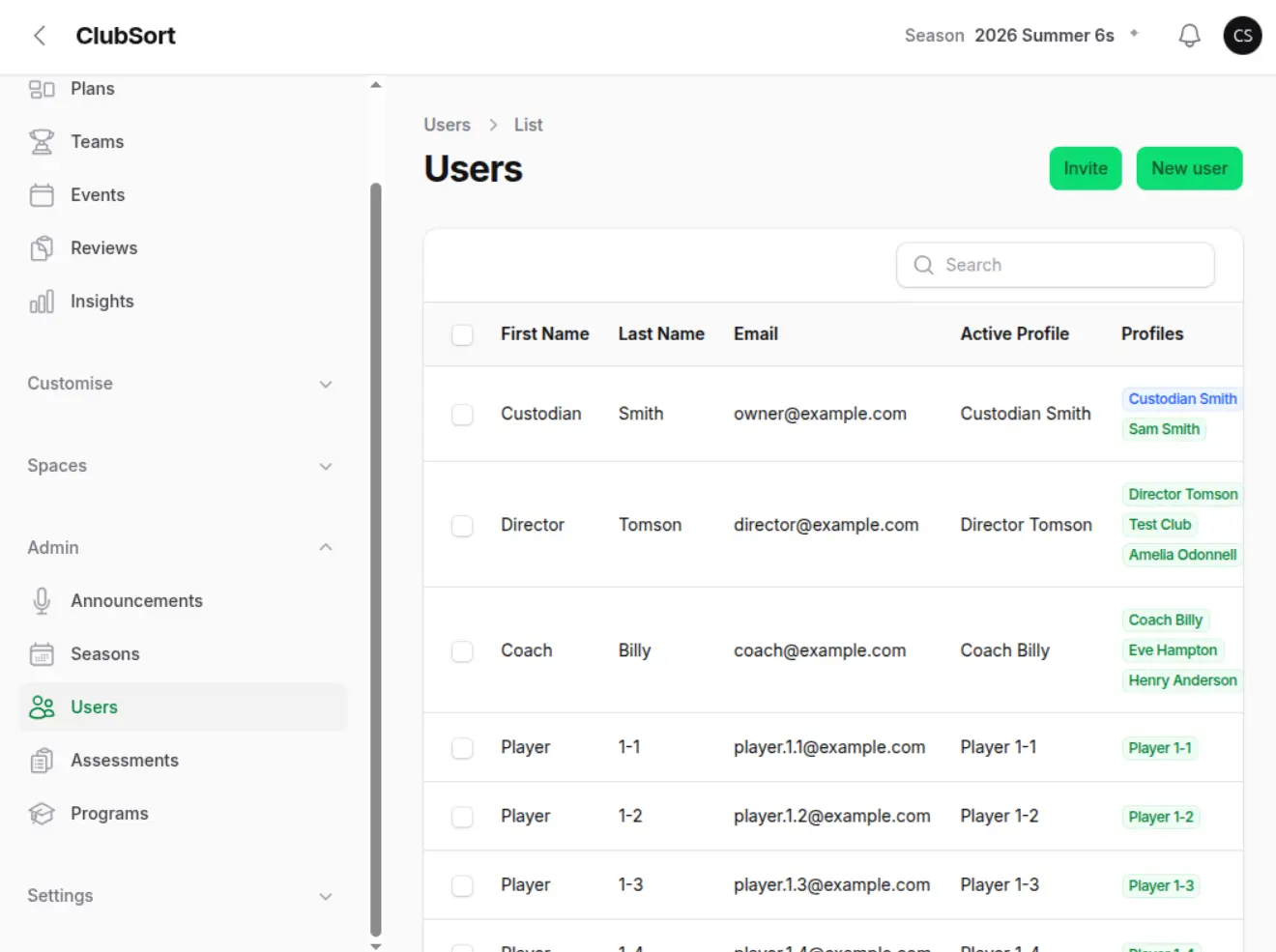
Invite staff and manage Users
Screenshot
Users and invitations
Show: The Users list and Create User action.
Purpose: Make the invitation and role-management starting point easy to find.
Who can do this?
Custodians and Directors. The role choices available to a Director are more limited than those available to a Custodian.
Before you start
You need the person's name, email address, intended role and available Package capacity for non-Player Profiles.
How to do it
Open Users.
Select Create User.
Enter the person's first name, last name and email address.
Select a role: Custodian, Director, Manager, Coach or Player, according to the choices available to you.
Save the User.
Open the User's Profiles area to review or manage the linked Profile.
A new User account may receive an invitation. If the email already belongs to a ClubSort User, ClubSort can use that existing User account. The new Profile is linked to the User account and its role controls access.
Assign and change a Profile role
Who can do this?
Custodians and Directors where the role controls allow it.
Before you start
The User and Profile must already exist. Decide which Club responsibility the person needs.
How to do it
Open Users.
Select the User.
Open the linked Profile.
Choose the role that matches the person's Club responsibility.
Save the change.
Ask the person to switch Profile or sign in again if their available actions do not update immediately.
The Profile's dashboard, navigation, visibility and available actions may change. Explain the role to the person before changing it because it changes what they can manage.
Manage Profile access
Who can do this?
Custodians and Directors with user/profile management access.
Before you start
You need to know which User account should be able to work as the Profile.
How to do it
Open Users and select the relevant User.
Review the linked Profiles.
Add or update Profile access using the available controls.
The User can work in the Profiles made available to them. Their active Profile still determines which Club and records they see.
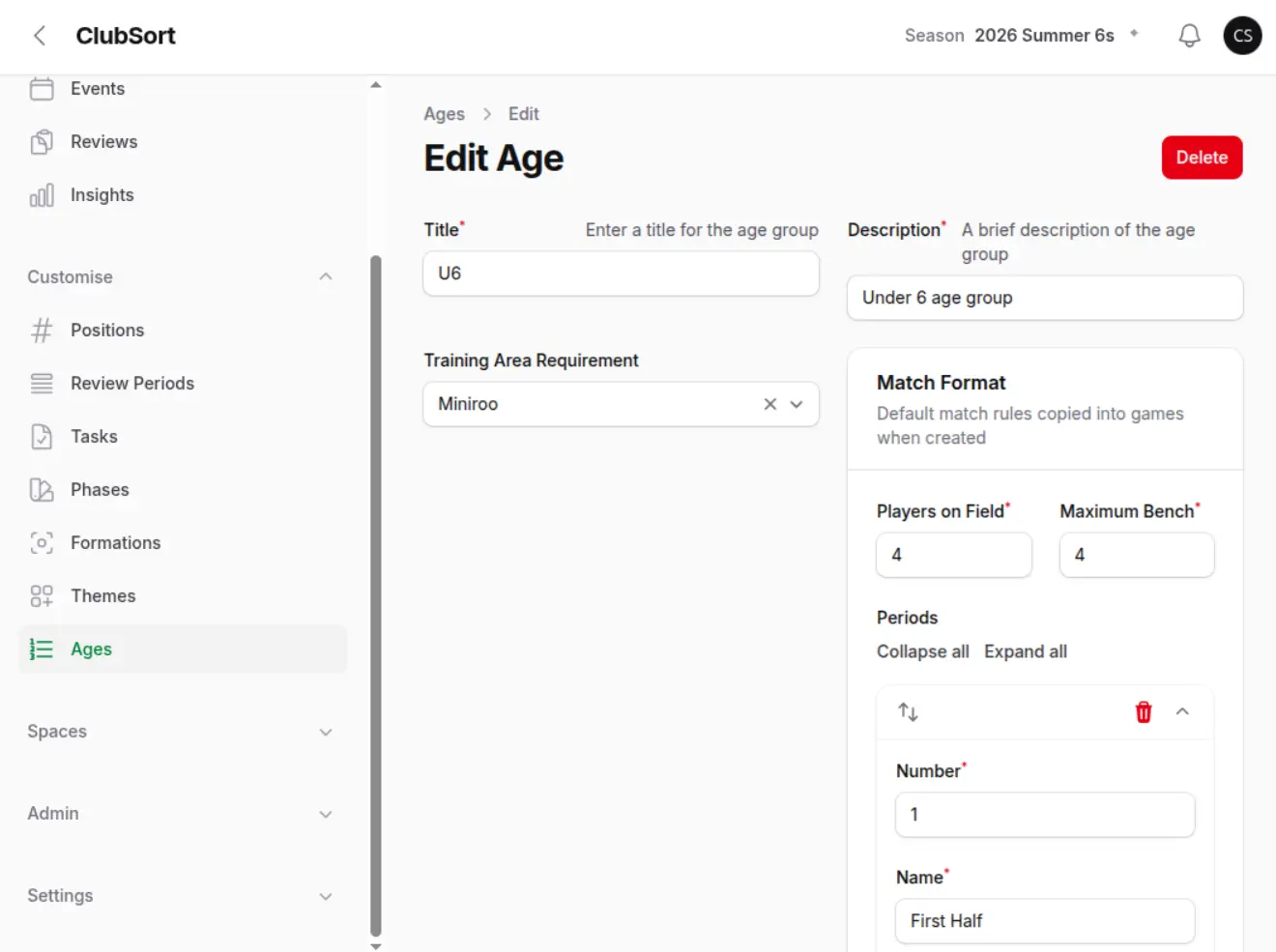
Configure Ages, Phases and Themes
Screenshot
Customise Ages
Show: The Customise area with Ages where team sizes and periods are defined.
Purpose: Show the location to change team list and game duration parameters.
Who can do this?
Custodians and Directors with the relevant configuration access.
Before you start
Decide the Club's naming conventions before changing shared lists. Ages are used by Teams; Phases and Themes can be used by Plans.
How to do it
Open the relevant Customise area.
Choose Ages, Phases or Themes.
Create, edit or remove an entry where the available action permits it.
Save the change.
Use the new entry when creating a Team or Plan.
The updated choices become available in the related forms. Keep names consistent so users can find the right option.
Create position groups and positions
Position groups organise the positions used on Player Memberships, Formations and Game Tracker. For example, create a Defence group and add positions such as Centre Back or Full Back to it.
Who can do this?
Custodians and Directors with the relevant configuration access.
Before you start
The Positions resource must be included in your Club's Package. Agree the groups, position names and short names that your Club will use before adding them, because the same position list is used across player and game workflows.
How to do it
Open Customise.
Select Positions.
Select Create Position Group.
Enter the position group name, such as Defence, and save it.
Open the new position group and select Create in its Positions list.
Enter the position's full Name and a unique Short name of up to five characters.
Save the position and repeat the process for the other positions in the group.
Reorder positions when needed so they appear in the preferred order in selection lists and Formation tools.
Use the positions when adding or editing Player Memberships and when building Formations for Game Tracker.
Manage Seasons
Use Seasons to keep Teams, Events, Review Periods and Reviews grouped by the period in which they belong. Custodians and Directors can create and archive Seasons. See Seasons for the full setup and workflow guide.
Club-wide tasks are reusable task definitions that Coaches and other authorised users can add to Events. Creating a task here does not assign it to a person or Event.
Who can do this?
Custodians and Directors.
Before you start
Choose a clear task title and decide whether the task should be active. Only active tasks are available when adding a task to an Event.
How to do it
Open Customise.
Select Tasks.
Select Create Task.
Enter the task title and, where useful, its description and category.
Set Active when the task should be available for Events.
Save the task.
Edit the task from the Tasks list when its wording or availability changes.
Delete a task only when it has not been used on an Event. A task that is already used cannot be deleted; leave it inactive or edit its details instead.
Create and publish Assessments
An Assessment is a reusable question template. A Review is a completed Assessment for one Player.
Who can do this?
Custodians and Directors.
Before you start
Decide what you want to assess and which questions should be answered with a rating, Yes/No or a comment.
How to do it
Open Assessments.
Select Create Assessment.
Enter the Assessment name and description.
Add questions.
For each question, choose a category, theme and question type: selector, Yes / No or Comment.
Save the Assessment.
Set Published when it is ready for Coaches to use.
Published Assessments become available when a user creates a Review. An unpublished Assessment is not available for new Reviews.
Create and manage Development Programs
Who can do this?
Custodians and Directors.
Before you start
Agree the purpose, start date and sequence of weeks for the Program. The feature must be available in your Club.
How to do it
Open Programs.
Select Create.
Enter the name, start date and description.
Add the Program weeks.
Publish the Program when its content is ready.
Activate it when the weeks are complete and valid.
Attach a Plan to a Program week when creating or editing a Plan, if that option is available.
An active Program can organise Plans by week. You can duplicate a Program when you need a separate version.
Understand Club settings and feature availability
Some ClubSort features are controlled by Club settings. A setting may make a field, relation or workflow available in another area, such as Attendance controls on Events or classification fields on Plans.
The Club feature settings control the availability of Plans, Events, Reviews, Development Programs, Spaces and Insights. Each feature is configured for the active Club, so changing a feature does not affect another Club and does not delete existing records. Event tracking is a child setting of Events and cannot be used when Events are disabled.
Who can do this?
Custodians and Directors.
Before you start
Check with your ClubSort administrator before changing a setting that affects other users.
How to do it
Open Settings if it is available to your Profile.
Review the setting label and current enabled state.
Change only settings you understand and are authorised to manage.
Save the change.
Check the related workflow, such as an Event or Plan form.
The related fields or controls may appear or disappear for users in the Club. Settings are not a substitute for a user's role or Profile access.
Disabling a feature removes its navigation and prevents direct access while preserving its existing data. Re-enable the feature to make that data available again.