Game Tracker records the live details of a Game Event, including the squad, formation, score, goals, substitutions, cards and notes. Use the Advanced view when you want to see the pitch layout and track Player positions during the Game.
Game Tracker is optional for Game Events. Use the Event's Attendance workflow when you only need to record who attended. Game Tracker adds tracked squad and match statistics such as starts, minutes, goals and cards; it does not replace ordinary Attendance.
Create and manage a Formation
Screenshot
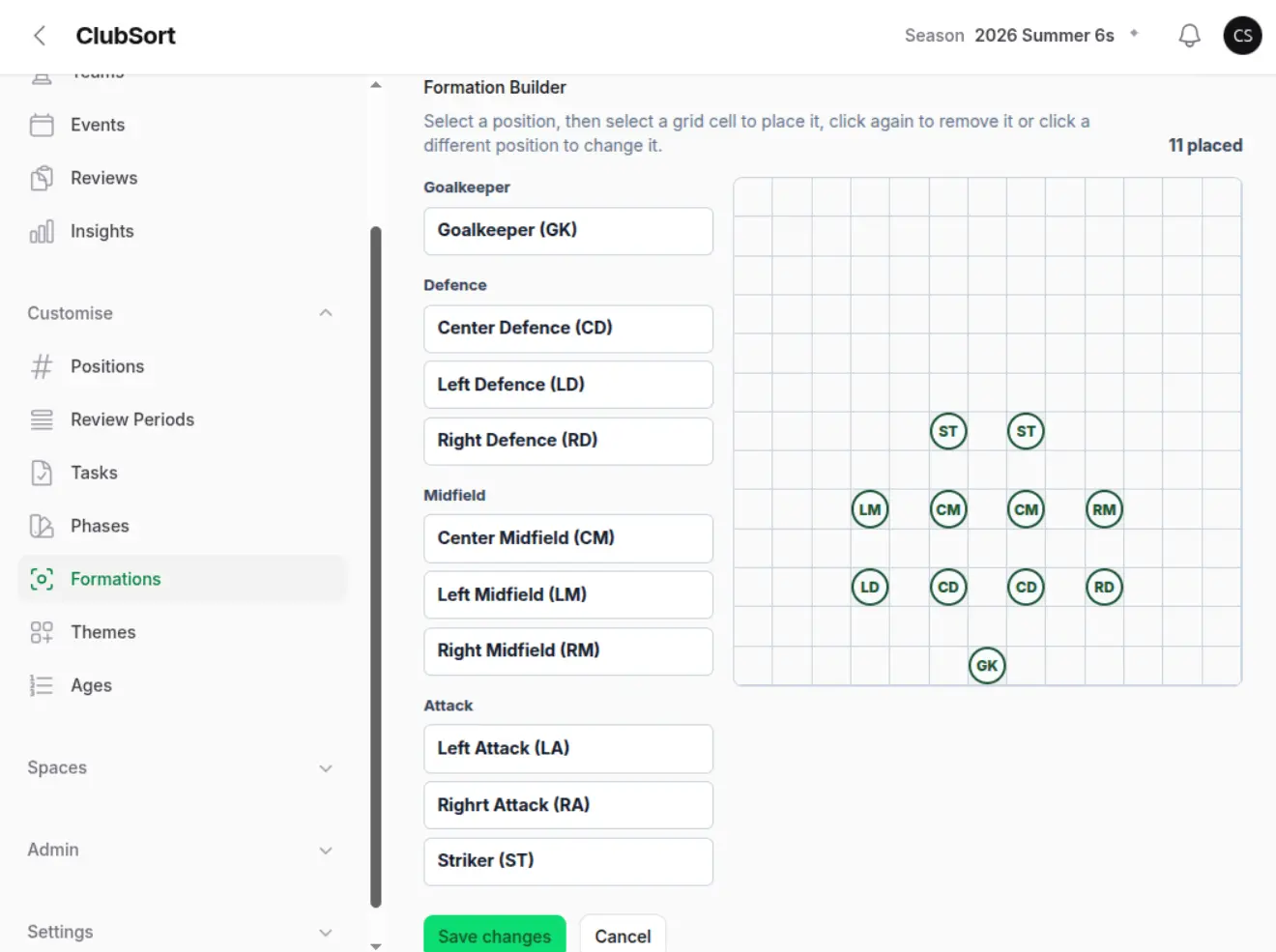
Formation builder
Show: A formation with position slots arranged on the pitch.
Purpose: Show the reusable layout prepared before tracking a Game.
Who can do this?
Custodians and Directors with access to the Club's customisation tools.
Before you start
The Positions resource must be included in your Club's Package. Set up the positions that your Club uses before building a Formation. A Formation is a reusable pitch layout made from position slots; it is not a saved lineup for one particular Game.
How to do it
Open Customise and select Formations.
Select Create.
Enter a Formation name and, optionally, a description.
Use Formation Builder to add the position slots used by the layout.
Arrange the slots on the pitch and save the Formation.
Edit the Formation later when the layout or its position slots need to change.
Only Formations with the same number of slots as the Game's field size are available for that Game. Creating or editing a Formation does not assign Players to a Game; choose the Formation in Game Tracker when preparing the Game.
Prepare a Game Event for tracking
Who can do this?
Coaches, Managers, Directors and Custodians with access to the Game Event.
Before you start
Create an Event with type Game, select its Team and enable Tracking. Add or confirm the Team's Players and shirt numbers before the Game starts, including any Players borrowed from another Team. If the Positions resource is included in your Package, you can also configure positions and use them during the Game.
How to do it
Open the Game Event.
Select Game Tracker.
Review the starting Players.
Open the Advanced view and choose a compatible Formation. Position and formation controls are only shown when the Positions resource is available for the Club's Package.
Confirm the Game details and save the setup.
Start tracking when the Game begins.
The Game Tracker opens with the selected squad and records live actions against the Game Event.
Track a Game live
Screenshot
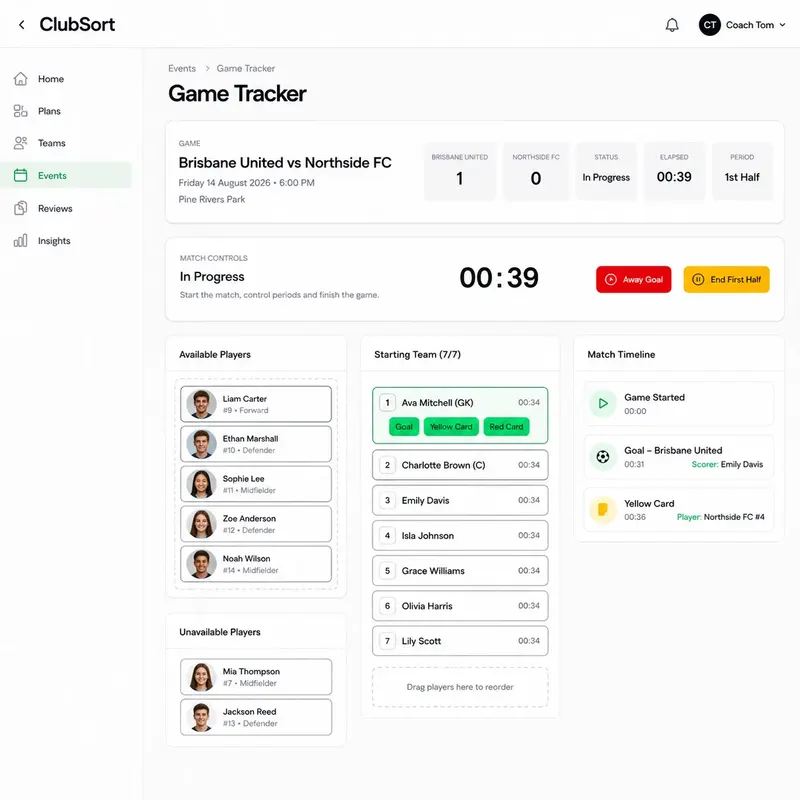
Live Game Tracker
Show: The live tracker with clock, score and action controls.
Purpose: Help users identify the controls used during a Game.
Who can do this?
Users with Game Tracker access.
How to do it
Open the Game Tracker.
Use the clock controls to start, pause or resume the current period.
Record goals, cards and substitutions as they happen.
Add notes when an event needs context.
Save or confirm each action.
Move to the next period when the current period ends.
End the Game when tracking is complete.
The Game record contains the actions that were saved. The final score and Player activity can be used in later tracked-game statistics and insights.
Use the Game Time Assistant
Game Time Assistant helps the person operating the Game Tracker make consistent rotation decisions during a live Game. It compares each Player's playing time with a target, highlights who is receiving less time, and can suggest a practical group of substitutions at the next rotation window.
The Assistant is available in both the web Game Tracker and the ClubSort app. Both views use the same Game state, so a setting saved in one view is available in the other. This is useful when one person prepares the Game on the web and another person runs the tracker from a phone or tablet.
Screenshot
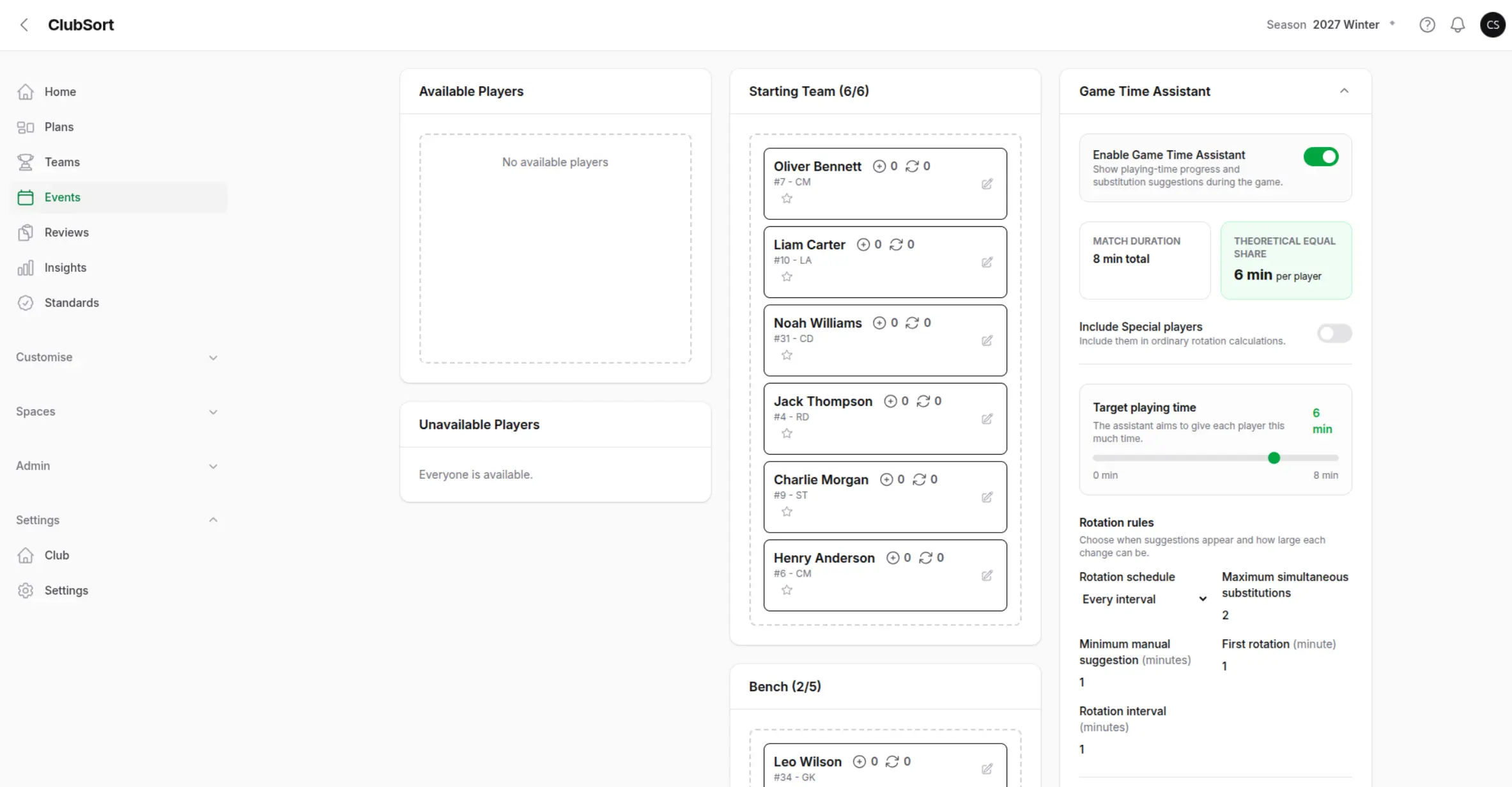
Game Time Assistant recommendation
Show: The in-game tracker with the Game Time Assistant panel visible, including the target playing time, current player progress and a substitution recommendation with an Apply action.
Purpose: Show how the Assistant turns live playing-time information into a suggested rotation without changing the Game until the operator applies it.
Configure the Assistant before the Game
Assistant settings can only be changed while the Game is still in draft. Open Game Tracker, then open Game Time Assistant in the setup panel on the web, or open Game actions > Assistant settings in the app.
Configure the following options:
Enable Game Time Assistant: Turns live playing-time progress and recommendations on for this Game.
Include Special Players: Includes Players marked as special in ordinary rotation calculations. Leave this off when those Players should be managed separately.
Target playing time: Sets the number of minutes the Assistant aims to give each Player. The initial value is the theoretical equal share for the Game, but you can lower or raise it to reflect the Club's plan. The target is a guide, not a requirement that overrides the Game clock.
Rotation schedule: Choose Every interval for a repeating schedule, or Custom by period when each period needs its own rotation times.
First rotation and Rotation interval: For an interval schedule, set the first suggested rotation and the number of minutes between later windows.
Maximum simultaneous substitutions: Limits how many Players a recommendation can move at one time.
Minimum manual suggestion: Sets the minimum playing-time gap used when the operator asks for a suggestion manually.
Save the settings before starting the Game. The saved configuration is part of the Game state and is broadcast to connected web and app trackers. If another operator has the Game open, their tracker refreshes to the saved configuration rather than keeping an older local copy.
Read a recommendation
When a scheduled rotation window is due, the Assistant evaluates the current squad and available Players. It considers playing time, who is currently on the field, the configured target, special-player inclusion and the maximum number of simultaneous substitutions. The recommendation is intended to be a decision aid: the coach or tracker operator remains responsible for the final selection.
A recommendation can show:
The Players suggested to leave the field.
The Players suggested to enter.
The reason for the suggestion, such as a Player being below the target or another Player having received more time.
The expected effect on playing-time balance.
The Assistant does not silently substitute Players. Review the recommendation against the match situation, injuries, tactical decisions and availability before applying it.
Apply or request a recommendation
Open the Assistant panel in the live Game Tracker.
Review the suggested substitutions and the playing-time progress for the affected Players.
Select Apply recommendation when the suggested changes are appropriate.
Confirm the updated field and bench lists.
The substitution is recorded as a normal Game action and appears in the Game timeline. Connected web and app trackers receive the updated squad and playing-time values. If no scheduled recommendation is ready, use Request suggestion when the manual minimum has been reached and a decision aid is needed.
The Assistant may decline to suggest a change when there is no valid substitution, no eligible bench Player, or when the configured constraints cannot produce a safe recommendation. Continue with a manual substitution when the match requires it; manually recorded substitutions still update the playing-time calculations.
Manage periods and the clock
Who can do this?
The user operating the Game Tracker.
How to do it
Select the current period.
Start the clock at kickoff or restart.
Pause it for half-time or another stoppage.
End the period when it is complete.
Start the next period when ready.
Do not create a new Game to represent each period. Keep the periods inside the same Game Event.
Record goals, cards and substitutions
Who can do this?
Users with live Game Tracker access.
How to do it
Goal: Select the goal action, choose the relevant Player and confirm the time.
Card: Select the card action, choose the Player and card type, then confirm.
Substitution: Select the substitution action, choose the Player leaving and the Player entering, then confirm.
Review the timeline after each action. Correct mistakes using the action menu where available.
Track Player positions in Advanced view
Who can do this?
Users with Game Tracker access in a Club whose Package includes the Positions resource.
How to do it
Open the Game Tracker and select Advanced.
Choose the Formation for the Game. The selected Formation is shared with other connected Web and Flutter devices using the same Game.
Before the Game starts, drag Players into the Formation slots or move them between slots to set the starting positions.
During the Game, drag a field Player to another slot when their position changes. You can also drag a bench Player onto the pitch when making a change.
Continue tracking the Game. Position changes are recorded with the Game timeline and are used when position-group minutes are calculated.
Formation selection belongs to the Game, while the Formation itself remains reusable. Player-to-slot assignments are used to render the current Game and are reconciled from the Game's tracked position changes; they do not overwrite the Player's general Membership position. Clubs without the Positions resource can still use Game Tracker for the available squad, score, goals, cards, substitutions and notes controls.
Complete a Game and view the result
Who can do this?
Users with access to the Game Tracker.
How to do it
Check the final score and timeline.
Confirm all periods are complete.
Add final notes where needed.
Select End Game or the available completion action.
Return to the Event or Team to review saved statistics.
The completed Game contributes tracked match data to the Team and Player records shown in available statistics and insights. Players in the final field or bench squad are also recorded as attending the Event, even if no Attendance response was entered.