Insights summarise Club, Team and Player information. Notifications tell you when ClubSort needs your attention, subject to your notification preferences.
Generate Player, Team and Club insights
Who can do this?
Users with access to the relevant Player, Team or Club data.
Before you start
Attendance, Game and other relevant records must exist. Choose the correct active Profile and scope. Attendance-based game totals do not require Game Tracker data.
How to do it
Open Insights.
Select the scope: Player, Team or Club.
Choose the filters available, such as Team, Player, date range or record type.
Select Generate or the available refresh action.
Review the summary and supporting results.
ClubSort calculates the selected insight using the records you can access. A different active Profile may produce a different result.
Read Attendance insights
Use Attendance insights to compare responses across the selected Player, Team or Club context. Remember that Not Sent and Pending are different from Attending and Not Attending: only the latter two are confirmed responses.
Read Game and Player insights
Game insights are based on saved Game Tracker actions. Attendance insights include Games attended from Event Attendance, including Game Events that were not tracked. Player and Team reports distinguish Games attended from Games tracked; minutes, starts, goals, cards and other match involvement metrics require Game Tracker data. Insights are summaries; open the source Event or Player record when you need to verify a detail.
When the Positions resource is available for the Club and position changes were tracked in Games, Player and Team insights can show minutes by position group. Team participation bars can show each Player's total minutes with the position-group split inside the bar, alongside a summary of the Team's total minutes by group. A Player with no tracked position changes still shows total minutes, but cannot show a position-group split.
Review coaching Standards
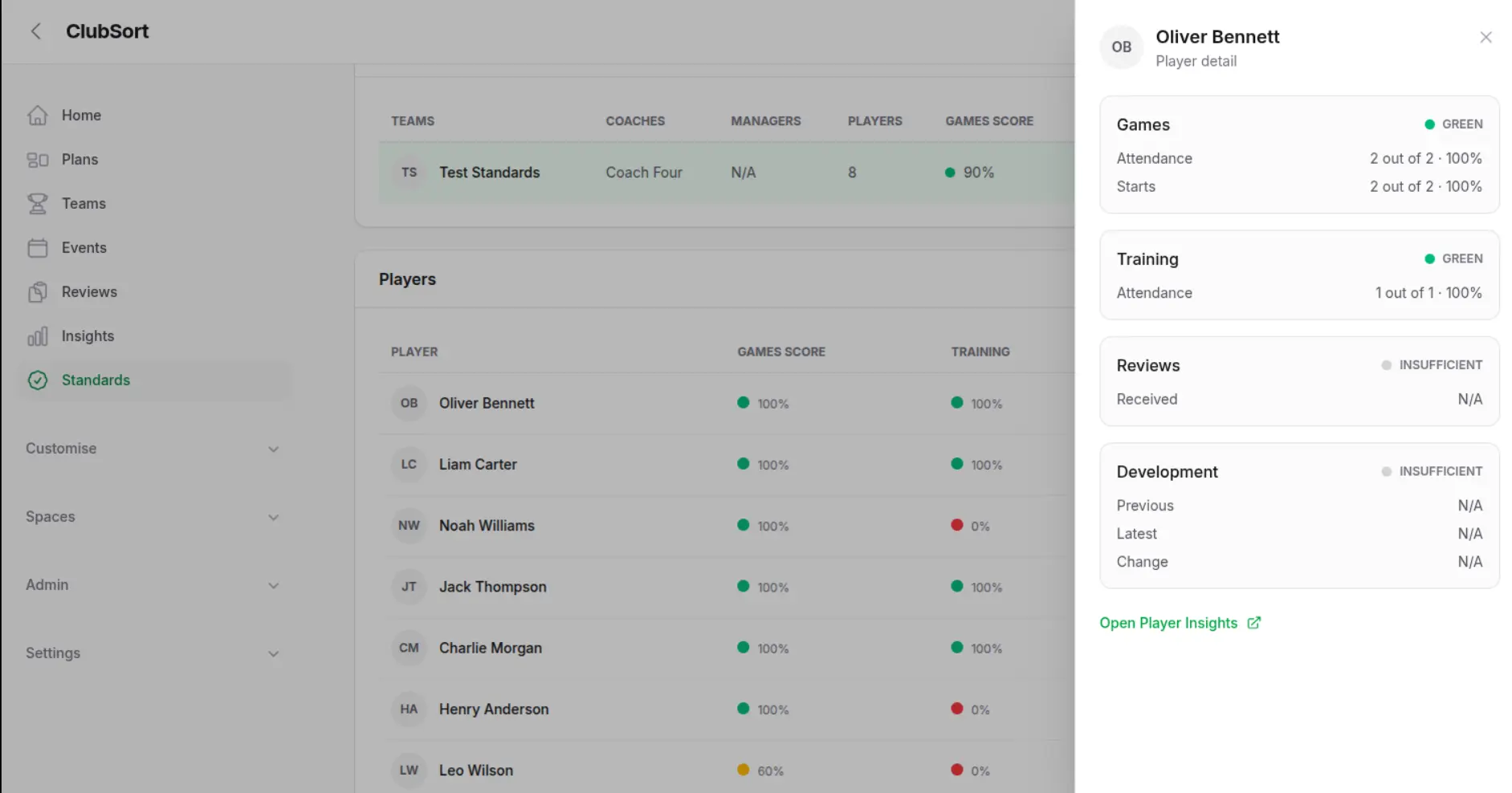
Standards gives Club leaders a quick view of how Players and Teams are tracking against the Club's coaching standards. It combines Games participation, Training attendance, Reviews received and Development trends for the currently selected Season.
Screenshot
Standards dashboard
Show: The Standards dashboard with Club totals, Team summaries and Player status indicators.
Purpose: Show where coaching follow-up may be needed and provide a route to the supporting Player evidence.
Who can do this?
Custodians and Directors with access to the Club or Teams shown on the page.
Before you start
Select the Season you want to review. Standards only includes active Teams and the relevant Games, Training sessions and completed Review Periods for that Season. The source Attendance, Game Tracker and approved Review records must be accurate for the results to be useful.
How to do it
Open Standards from the main navigation.
Check the Club totals and the current Team summary.
Review each Team's Games score, Training, Reviews and Development indicators.
Select a Team to view its active Players.
Compare each Player's status and percentage with the other standards.
Select a Player to open the supporting evidence, including attendance, starts, Reviews and Development change.
Use Open Player Insights when you need the wider statistics behind the Player's Standards result.
Games is shown as a configured composite score using Games attendance and Games starts. Training and Reviews are shown as their respective attendance or completion percentages. Development shows the relative change between the previous and latest review scores. Green, amber and red statuses use the thresholds configured in Settings > Club Settings > Coaching Standards; insufficient data is shown separately and is not treated as zero.
Understand notifications
ClubSort may notify you when an invitation, Plan approval, Review decision, Review release or other action needs attention. The exact delivery channel depends on the notification and your Club configuration.
How to do it
Open the notifications area or follow the notification link.
Read the message and open the related record.
Complete the required action.
Mark the notification read where that action is available.
ClubSort may notify you when an invitation, Plan approval, Review decision, Review release or other action needs attention. The exact delivery channel depends on the notification and your Club configuration.
Send club announcements
Club announcements let you send a short message to people in your Club. Announcements are delivered through ClubSort notifications and can include an optional link to the Club website or a news article.
Who can do this?
Custodians and Directors can create and send announcements. Managers, Coaches and Players cannot send them.
Before you start
Choose the Profile for the Club that should send the announcement. Decide whether the message is for the entire Club or a specific audience. Keep the message to 500 characters or fewer; use the optional link for longer information.
How to do it
Open Announcements.
Select Create or Send announcement.
Enter a short Title and Message.
Add a More information URL if people need to read a website page or news article.
Choose Entire club to notify all active Profiles in the Club, or choose Specific audiences.
For a specific audience, select one or more Age groups, Teams, Roles or Specific people.
Check the recipient count and select Send announcement.
Confirm the send action. The announcement is then delivered to the selected recipients.
Team and age-group audiences use current active membership when the announcement is sent. A later membership change does not resend the announcement or revoke a notification that has already been delivered. The selected audience is retained with the announcement for reference.
Manage notification preferences
Who can do this?
Any User account for its own available preferences.
How to do it
Open Settings or your User account preferences.
Review the notification categories available.
Enable or disable the preferences you are allowed to change.
Save the changes.
Future notifications follow the saved preferences. Preference changes do not change the underlying Plan, Review, Event or Attendance state.