Use this section to build Teams, maintain Players and understand the difference between a primary and borrowed Membership.
Create and edit a Team
Who can do this?
Custodians, Directors, Coaches (create) and Managers with Team management access (edit).
Before you start
You need an active Club Package, an active Season selected in the Season selector and an Age category. A Team can be created before it has staff, so you can prepare empty Teams during setup.
Screenshot
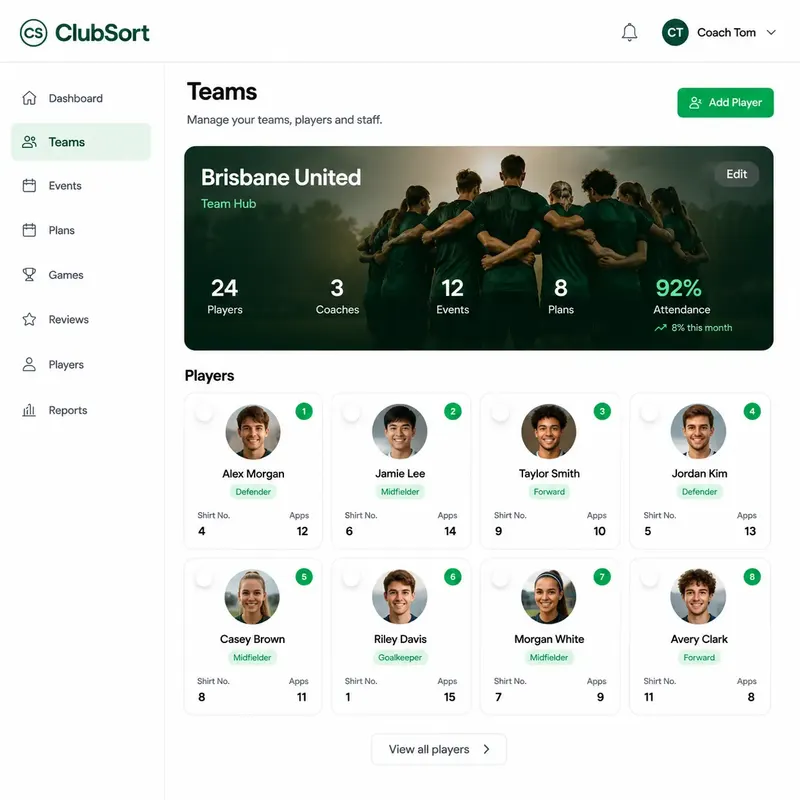
Team Hub
Purpose: Show where Team details and roster tasks are grouped.
How to do it
Open Teams.
Select Create Team.
Enter the Team name.
Select the Age.
Optionally upload a Team Image. Use a JPEG, PNG or WebP image up to 10 MB.
Add additional owners if available (these apply to Package limits if not a Manager)
Save the Team.
To edit it later, open the Team and select Edit.
Assign an active operational staff member before assigning Managers or adding Players. A Coach, Director or Custodian makes the Team ready for Events, player management and other operational work.
The Team Image appears in the Team Hub beside the Team name. You can replace it from Edit Team, or remove it by clearing the image field and saving.
Assign Team owners
Who can do this?
Custodians, Directors, Coaches and Managers where the Team form allows the action.
Before you start
The person must have a Profile in the same Club and an operational role such as Coach or Manager.
Set up a Team in this order: create the Team, assign a Coach, Director or Custodian, assign Managers, then add Players. Managers do not count as operational staff for Team activation. A Coach cannot remove their own Team assignment. A Team with Managers or Players must retain at least one active Coach, Director or Custodian; clear those operational assignments before removing the final operational staff member so the Team can return to an empty setup state.
How to do it
Open the Team.
Select Edit.
Use Select additional owners.
Choose the Profiles who should manage the Team.
Save the Team.
Assigned owners can see and manage the Team according to their role. Team access does not automatically grant Club-wide access.
Add a Player to a Team
Who can do this?
Staff with Membership management access, including Custodians, Directors, Coaches and Managers where permitted.
Before you start
You need a Team, the Player's name and date of birth, an email address and available primary-player capacity.
How to do it
Open the Team Hub.
Open Players.
Select Create.
Enter the Player's first name, last name and date of birth.
Choose Adult or Child for the Profile type.
Enter the Player email, or the Parent/Guardian email when creating a Child Player.
Add the shirt number and, when the Positions resource is included in your Package, choose a position if known.
Leave Primary Team selected when this is the Player's main Team.
Save the Player.
ClubSort creates the Player Profile and adds the Player to the Team. A new User account may receive an invitation. The Player can then appear in Events, Attendance, Games and Reviews.
Import Players from a CSV
Who can do this?
Staff with Membership management access for the Team.
Before you start
Prepare a CSV with an email address for every Player. Include first and last name columns where possible. You can also provide one full-name column; ClubSort normalises it into first and last names. Optional columns include date of birth, shirt number and position.
The import is performed in the Team context that you opened. Confirm the Team and Club before starting, and make sure the rows and email addresses belong to the intended Players.
How to do it
Open the Team Hub.
Open the Team's Players or Memberships area.
Select Import Players.
Upload the CSV.
Map the CSV columns to the available Player fields and continue through the review steps.
Map the column containing the Player's birth information to Year of birth when it is not detected automatically.
Start the import and review the completed or failed rows.
ClubSort creates the Player Profile and Team Membership through the same workflow as manual Player creation. An email that already belongs to a ClubSort User is reused; the import can create another Profile and Membership for that User, including when the User already has another Profile in the Club.
For Year of birth, map the source column rather than changing the source data solely to make it an integer. ClubSort derives the year from a four-digit year or common date formats such as `14/03/2011`, `14-03-2011`, `14.03.2011`, `2011-03-14`, `2011/03/14` and `03/14/2011`. Blank or unrecognised values are left empty.
Positions use an exact match against the Club's position name or short name. An unmatched position does not stop the Player import; the Membership is created without a position so it can be corrected later.
Add a child Player and guardian account
Who can do this?
Staff with Membership management access.
Before you start
Have the child's details and the Parent/Guardian email address. The Parent/Guardian is the account contact for this workflow; it is not a separate ClubSort role.
How to do it
Open the Team Hub and select Create in Players.
Enter the child's details.
Set Profile Type to Child.
Enter the Parent/Guardian email.
If the email is not already a ClubSort User, enter the Parent/Guardian first and last name.
Add the Player's shirt number and, when available for your Package, a position.
Save the Player.
The child now has a Player Profile. The Parent/Guardian email is associated with the User account for access and invitation purposes where a new account is created.
Borrow a Player from another Team
Who can do this?
Staff with Membership management access.
Before you start
The Player must already belong to the Club and must not already be on the target Team.
How to do it
Open the target Team Hub.
Open Players.
Select Borrow.
Choose an existing Player.
Enter a shirt number and, when available for your Package, a position for this Team.
Leave Primary Team disabled.
Save the borrowed Membership.
The Player appears on the target Team as a borrowed Player.
The Player's main Team remains unchanged, and the borrowed assignment does not count as a primary-player assignment.
Update Player number, position and Team avatar
Who can do this?
Staff with access to the Team's Players.
How to do it
Open the Team Hub and select a Player.
Select Edit.
Update the shirt number, the position when the Positions resource is available, or the Team Avatar.
Save the Membership.
A Team Avatar overrides the Player's general avatar for that Team only.
Position fields and position administration are Package-dependent. If Positions are not included in your Club's Package, continue without a position; shirt numbers and other Player information remain available.
View the Player Hub and Player statistics
Who can do this?
Staff with access to the Player and Team. Players can view information made available to their own Profile.
How to do it
Open the Team Hub.
Select the Player.
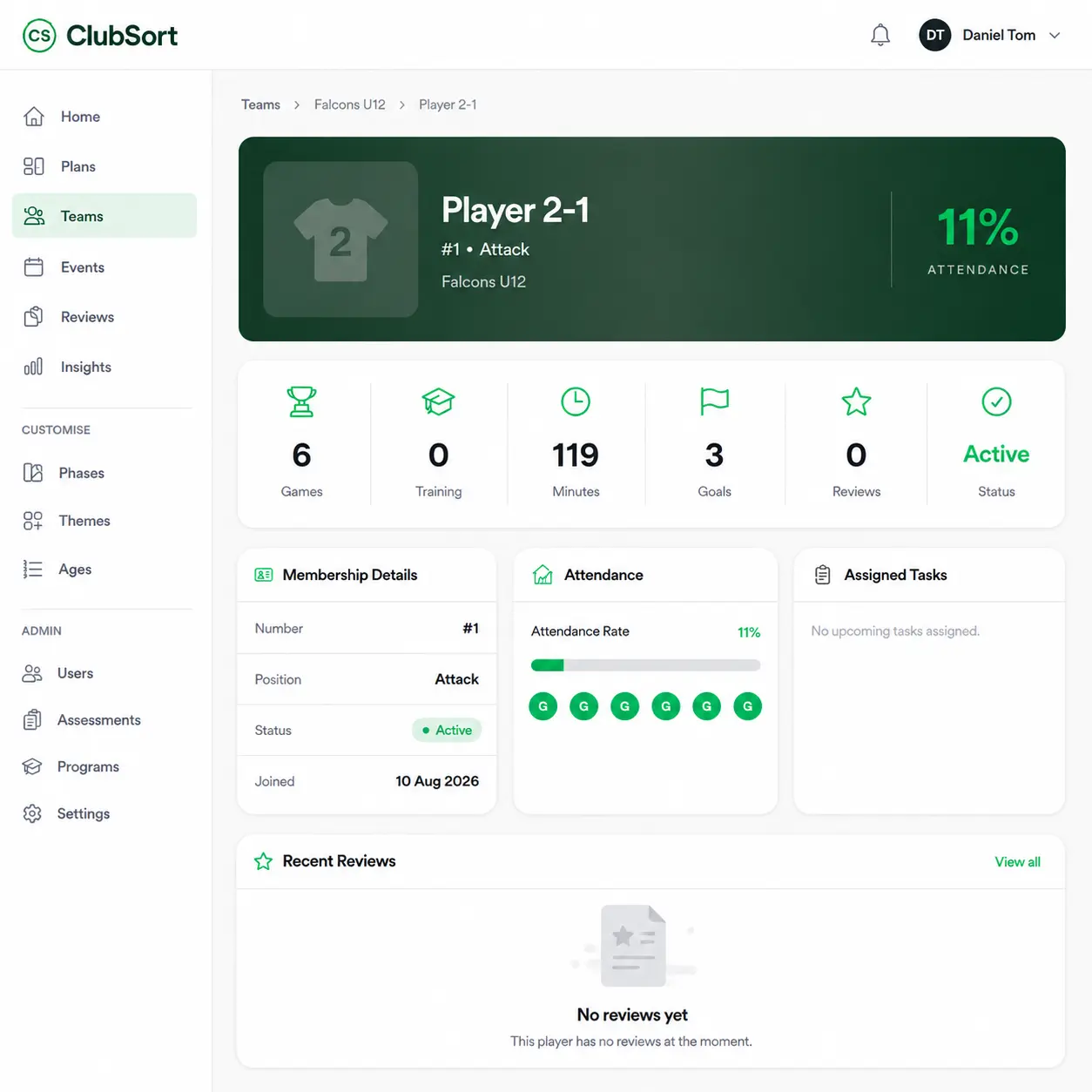
Review the Player's Team context, Attendance and available statistics.
Use the related links to open Events, Games or Reviews where available.
When Positions are enabled for the Club, review the Player's minutes by position group in the available statistics.
Statistics depend on the Attendance and Game information recorded in ClubSort. Games attended can be counted from Attendance even when Game Tracker is not used. Games tracked, minutes, starts, goals and other match involvement metrics require Game Tracker data. Position-group minutes are only available when the Positions resource is enabled and position records have been used in tracked Games.
Understand the Seasons count
The Player Hub's Seasons statistic counts the current Membership and follows its rollover links to earlier Memberships. This provides a season-to-season history when the Player's Memberships have been rolled over. It counts linked Membership records; it does not search for every historical Membership belonging to the same Player.
Screenshot
Player Hub
Purpose: Help staff understand where a Player's related information is gathered.
Remove or end a Player's Team Membership
Who can do this?
Staff with the relevant Membership management access.
How to do it
Open the Team Hub and the Players list.
Select the Player action menu.
Choose Delete or the available end-membership action.
Confirm the action.
The Player is no longer active on that Team. Existing records may remain available according to their workflow and visibility rules.