ClubSort Help

Session Plans

Plans are reusable coaching sessions. A Plan can contain ordered activities, remain private or be shared, go through approval, and be attached to an Event.

Understand session Plans

A Plan is the coaching content for a session. An Event is the scheduled time and Team context where the Plan may be used. An Assessment is unrelated: it is a template for a Player Review.

Plans can be:

  • Draft / Not approved: being created or returned for changes.
  • Pending: submitted and waiting for a Director or Custodian.
  • Approved: ready for use; a Coach cannot edit it.

A Plan can also be private or shared. Shared does not mean public.
Create a session Plan

Who can do this?

Coaches, Directors and Custodians with Plan management access.

Before you start

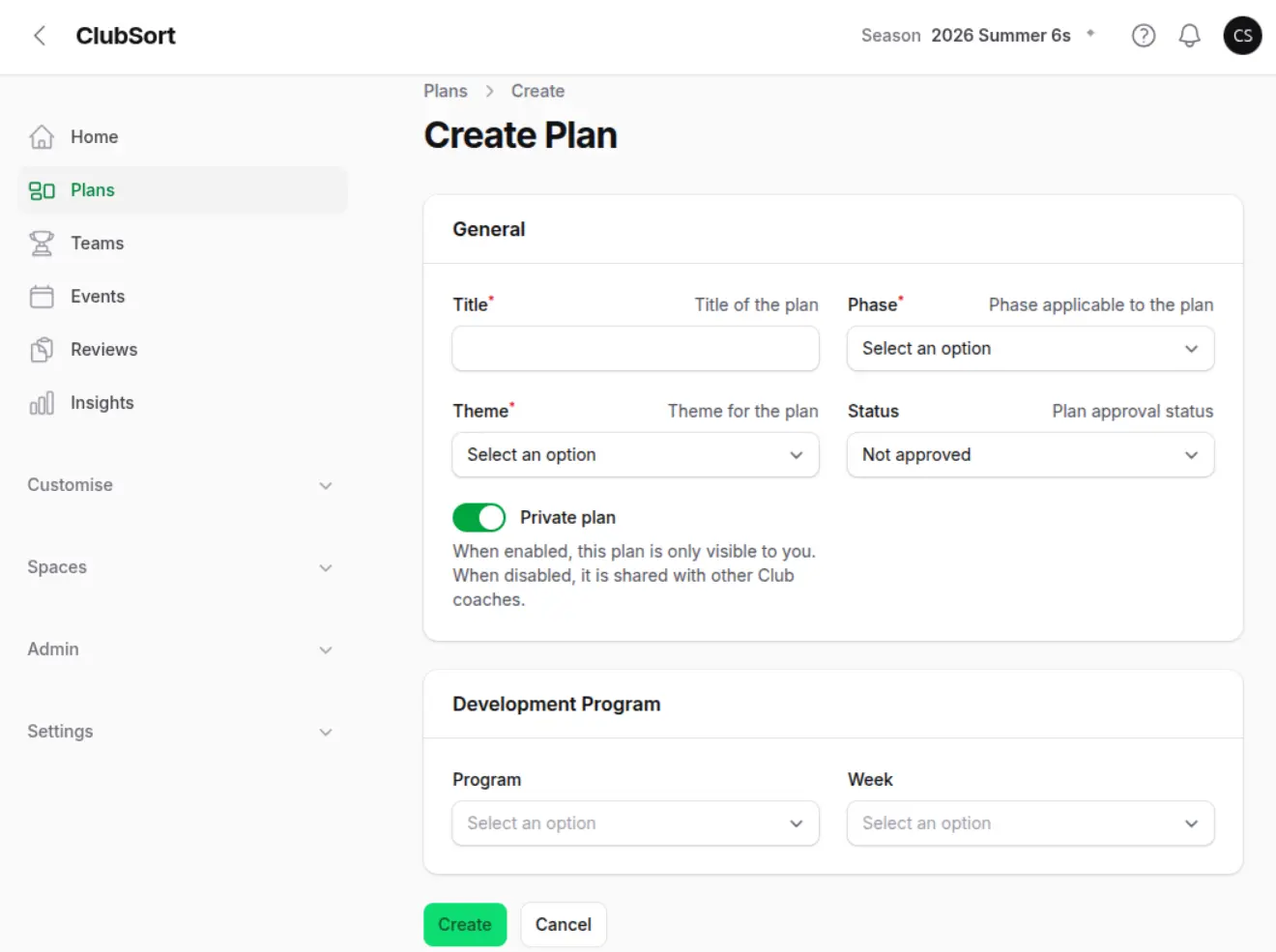
Check that your Package allows another Plan. Decide the Plan title and any Phase, Theme or Development Program information your Club uses.

How to do it

  1. Open Plans.
  2. Select Create Plan.
  3. Enter the Plan title.
  4. Choose a Phase, Theme or Program when those fields are available.
  5. Choose whether the Plan is private.
  6. Save the Plan.
  7. Continue with Build a Plan in the Canvas/Plan Editor.
  8. The Plan opens in the Plan Library and can be built, printed, replicated or submitted according to its status and your role.

Build a Plan in the Canvas/Plan Editor

Who can do this?

Coaches and other users with permission to edit the Plan.

Before you start

Create a draft Plan and have the activities ready to arrange.

How to do it

  1. Open the draft Plan.
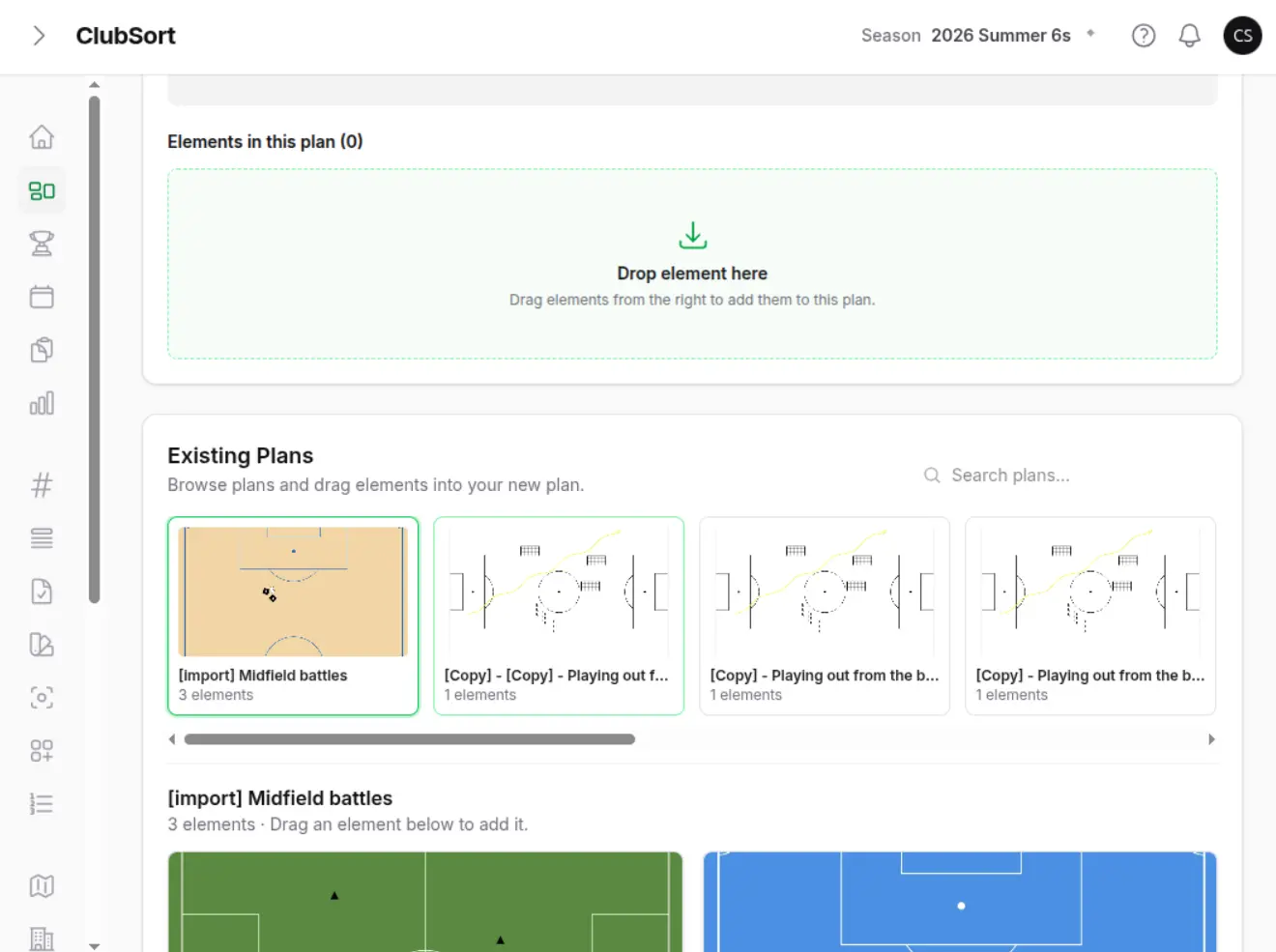
  2. Open the Plan's element editor.
  3. Add an activity or visual element.
  4. Use the Canvas/Plan Editor controls to position and edit it.
  5. Save each element as you work.
  6. Return to the Plan and check the order and duration.
  7. The Plan's duration is based on its activity elements. The completed Plan can be used in an Event after approval where approval is enabled.

Add and organise activities

Who can do this?

Users who can edit a draft Plan.

How to do it

  1. Open the Plan Editor.
  2. Add each activity in the order it should be delivered.
  3. Add the visual or instructional content for each activity.
  4. Set each activity's duration where available.
  5. Reorder activities until the session flows correctly.
  6. Save and review the total Plan duration.
  7. The Plan presents its activities in the saved order. Its duration can be used when an Event is created.

Keep a Plan private or share it

Who can do this?

Users creating or managing a Plan.

How to do it

  1. Open the Plan's edit form or Plan Library row.
  2. Find Private or Private?.
  3. Turn it on to keep the Plan for your own use.
  4. Turn it off to share it with eligible Club Coaches.
  5. Save the change while the Plan is editable.
  6. A private Plan is available to its owner and authorised Club leaders. A shared Plan can be visible to eligible Coaches. It is not public.

Submit a Plan for approval

Who can do this?

Coaches with a completed draft Plan.

Before you start

Check the title, activities, duration, visibility and any attached classification.

How to do it

  1. Open the draft Plan.
  2. Change its status to Pending, or select the available submit action.
  3. Confirm the submission.
  4. Wait for a Director or Custodian to review it.
  5. The Plan is pending. Directors and Custodians can review it. A Coach cannot approve it and cannot edit it while it is pending.

Approve or return a Plan

Who can do this?

Directors and Custodians.

Before you start

The Plan must be pending. Review its activities, wording, duration and suitability for Club use.

How to do it

  1. Open Plans and find the pending Plan.
  2. Review the Plan and its activities.
  3. Choose Approved when it is ready.
  4. Choose Return for changes when the Coach needs to amend it.
  5. Save the status change.
  6. If returned, the Coach can edit the Plan and resubmit it. If approved, the Plan is ready for use and a Coach can no longer edit it. The relevant users may receive notifications.

Attach an approved Plan to an Event

Who can do this?

Users who can create Events and see the approved Plan.

How to do it

  1. Start Create an Event.
  2. Select the Team and Event type.
  3. Open Select Plan.
  4. Choose the approved Plan.
  5. Check the duration and sharing setting.
  6. Save the Event.
  7. The Event is linked to the approved Plan. The Team can use the Plan in the scheduled session.

Users with access to the Plan and the relevant action.

  1. Open the Plan action menu.
  2. Choose Print to select layout, paper size and orientation, then download the PDF.
  3. Choose Export to download a ClubSort Plan file where available.
  4. Use the available Plan import workflow to bring a supported ClubSort Plan into your Club.
  5. Choose Replicate to create a copy for a new version.
  6. Rename and edit the replicated copy while it is a draft.
  7. A replicated Plan starts as a new draft. Printing creates a PDF. Export and import are intended for supported ClubSort Plan files; do not treat them as a general document export.

Why a Plan cannot be edited or deleted

A Coach cannot edit the Plan

A pending Plan is waiting for review. An approved Plan is locked for Coaches. If a Director or Custodian returns it for changes, it becomes editable again.

You need a new version

Use Replicate on the approved Plan. Edit the copy and submit it for approval if required.

The Plan cannot be deleted

ClubSort prevents deleting a Plan that is used by an upcoming Event. Remove or change the future Event's Plan first, if your role and Club process allow it.